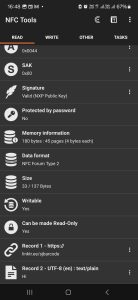
Guideline: Rewriting an NFC Tag Using NFC Tools
Prerequisites
- Android phone with NFC enabled
- Download NFC Tools app at https://nfc.software/ and install the app
- This NFC tag is ready to be rewritten
Step 1: Read the Existing NFC Tag
- Open NFC Tools.
- Tap Read.
- Place the phone near the NFC tag.
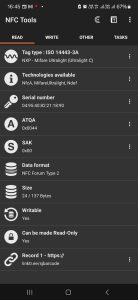
- Review the information displayed:
- Record type (URL, Text, Contact, WiFi, etc.)
- Current data stored
- Tag memory size and available space
Step 2: Erase Existing Content (Optional)
If you want a completely clean tag:
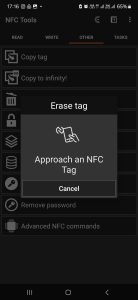
- Go to Other.
- Select Erase Tag.
- Tap Erase.
- Touch the NFC tag when prompted.
Step 3: Create New NFC Content
- Go to Write.
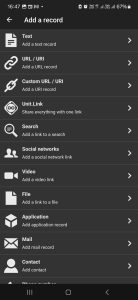
- Tap Add a Record.
- Select the desired record type:
| Record Type | Example |
|---|---|
| URL/URI | https://yourwebsite.com |
| Text | Welcome to S & J Bar Code |
| Contact | vCard details |
| WiFi | Network SSID & Password |
| support@example.com | |
| Phone Number | +60123456789 |
| Launch App | Open a specific application |
- Enter the required information.
- Tap OK.
Step 4: Write to the NFC Tag
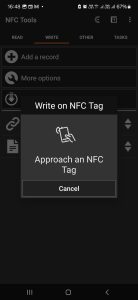
- After adding all records, tap Write / XX Bytes.
- Bring the phone close to the NFC tag.
-
Wait for the success message:
“Write Complete”
Step 5: Verify the Tag
- Return to Read.
- Scan the tag again.
- Confirm the new information appears correctly.
- Test the NFC action (open URL, connect WiFi, launch app, etc.).